How to use Musicanote
This guide shows, step by step and with pictures, how to find sheet music, search for music by a melody you remember, and make your own arrangement. Just follow the steps in order, even if this is your first time.
In the pictures, a red box marks the place to click or look at.
1Getting started
Look around the home page, change the language, and sign up or log in.
1The home page
Type musicanote.com in your browser to open the home page. Use the big search box in the middle to find sheet music. The “Melody Search” button on its right opens the page where you can find music by a melody.
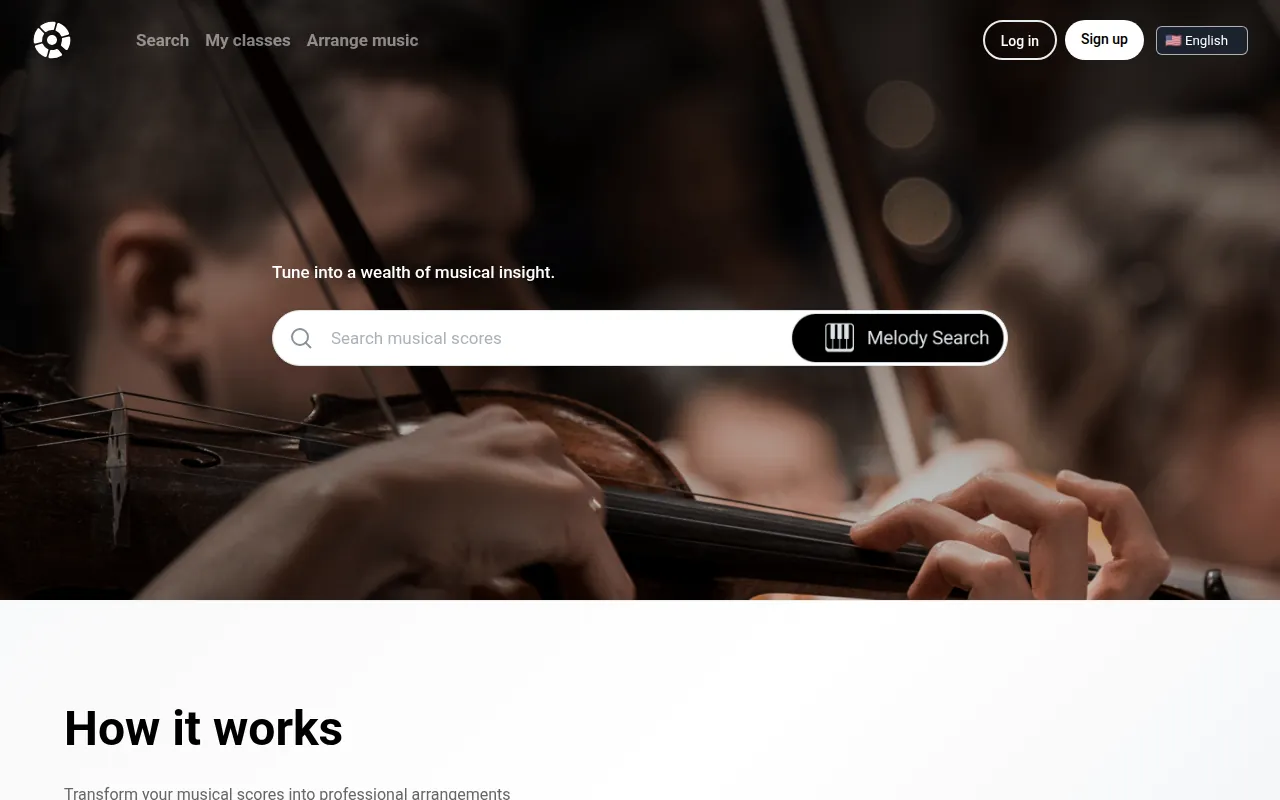
2The top menu
The menu at the top takes you straight to the main features.
“Search” is melody search, “My classes” is a shared space for teachers and students, and “Arrange music” is the tool that turns a score into a new arrangement.

3Change the language
Click the language box at the top right and choose English, 한국어 or 简体中文. The page switches to that language. Your choice also applies to the arranging tool.

4Sign up and log in
If you are new, click “Sign up”. If you already have an account, click “Log in”. You can search for scores and melodies without logging in, but you need to log in to see and play whole scores, arrange music and use classes.

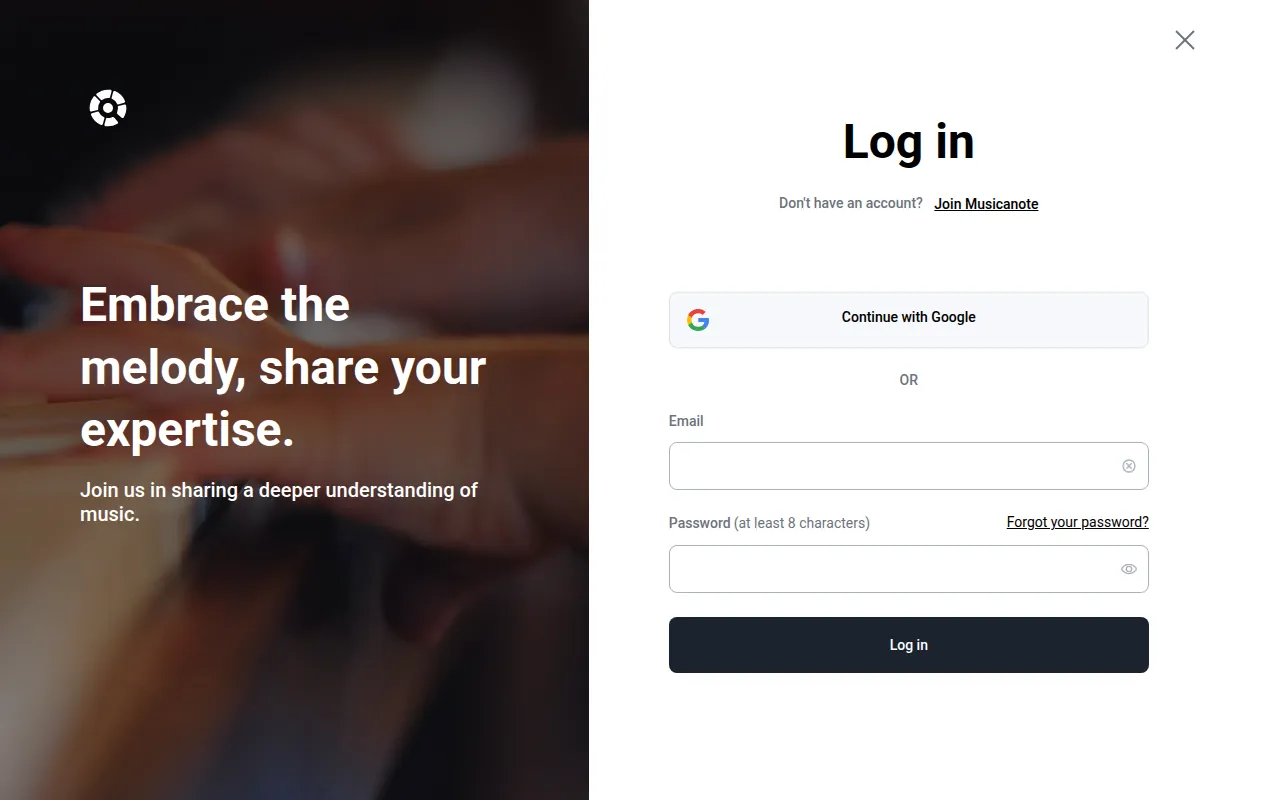
5The login page
Enter the email and password you used when you signed up. You can also log in with a Google account.
2Search for sheet music
Use this when you know the title of a piece or the name of its composer.
1Type what you are looking for
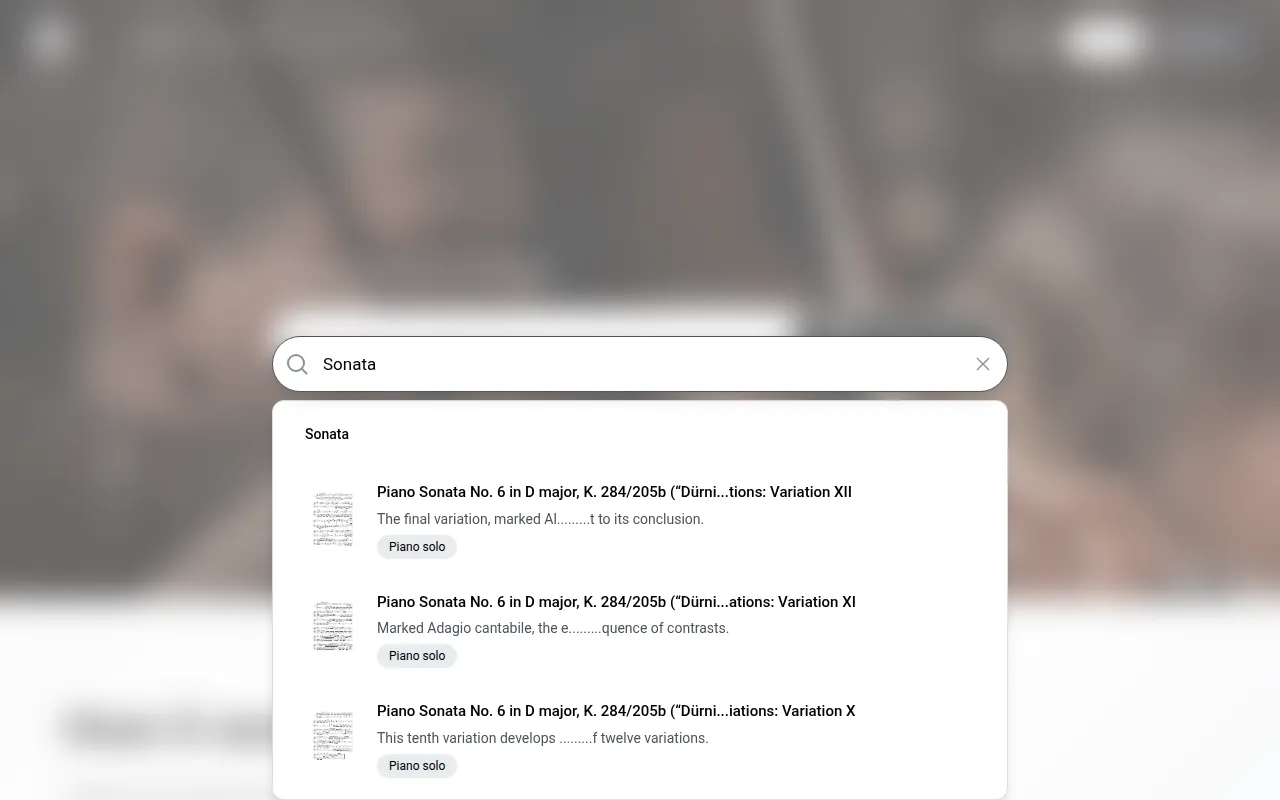
Click the search box on the home page and type a title or composer, for example “Sonata”. Matching scores appear right below while you type. Click one to open it straight away.
2Look at the results
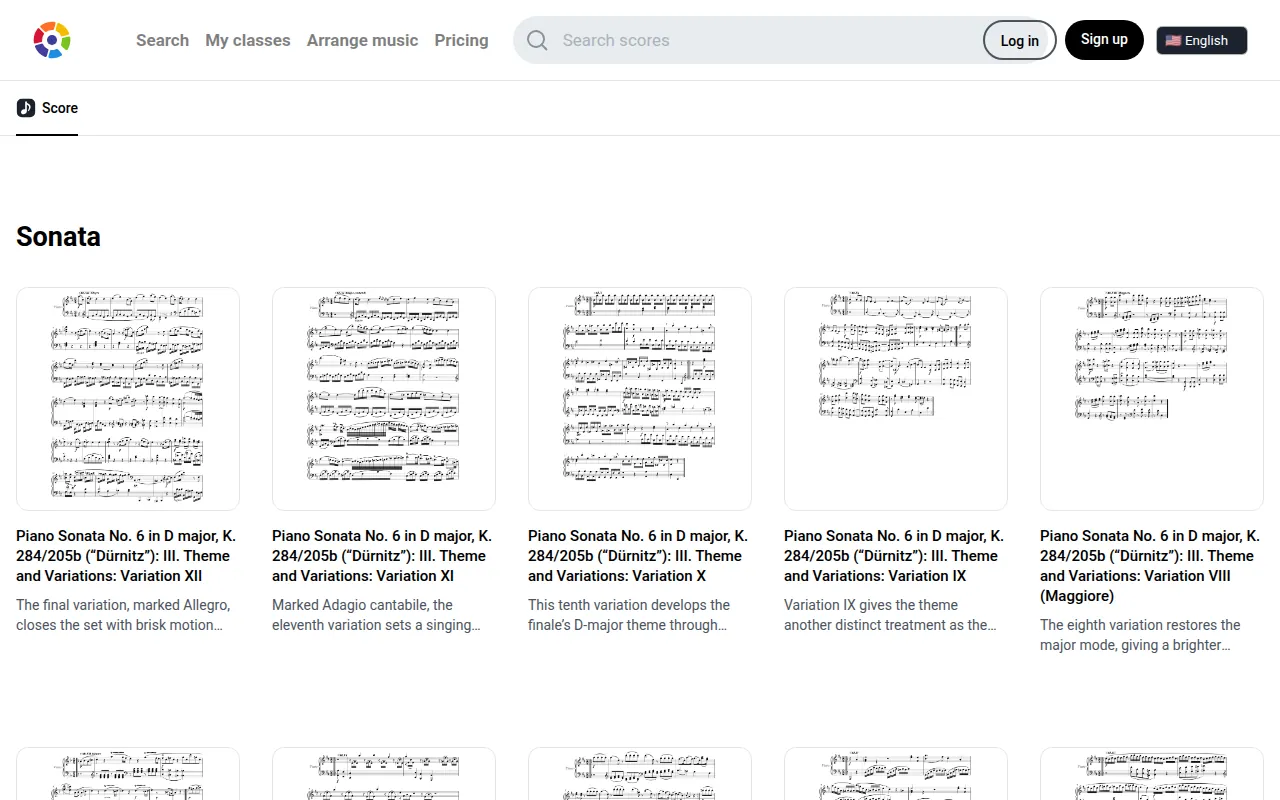
Press Enter to open the results page. Each result shows a picture of the first page, the title and a short description, so you can pick a score by looking at it.
If nothing is found, try fewer words or the English title.
3Open a score
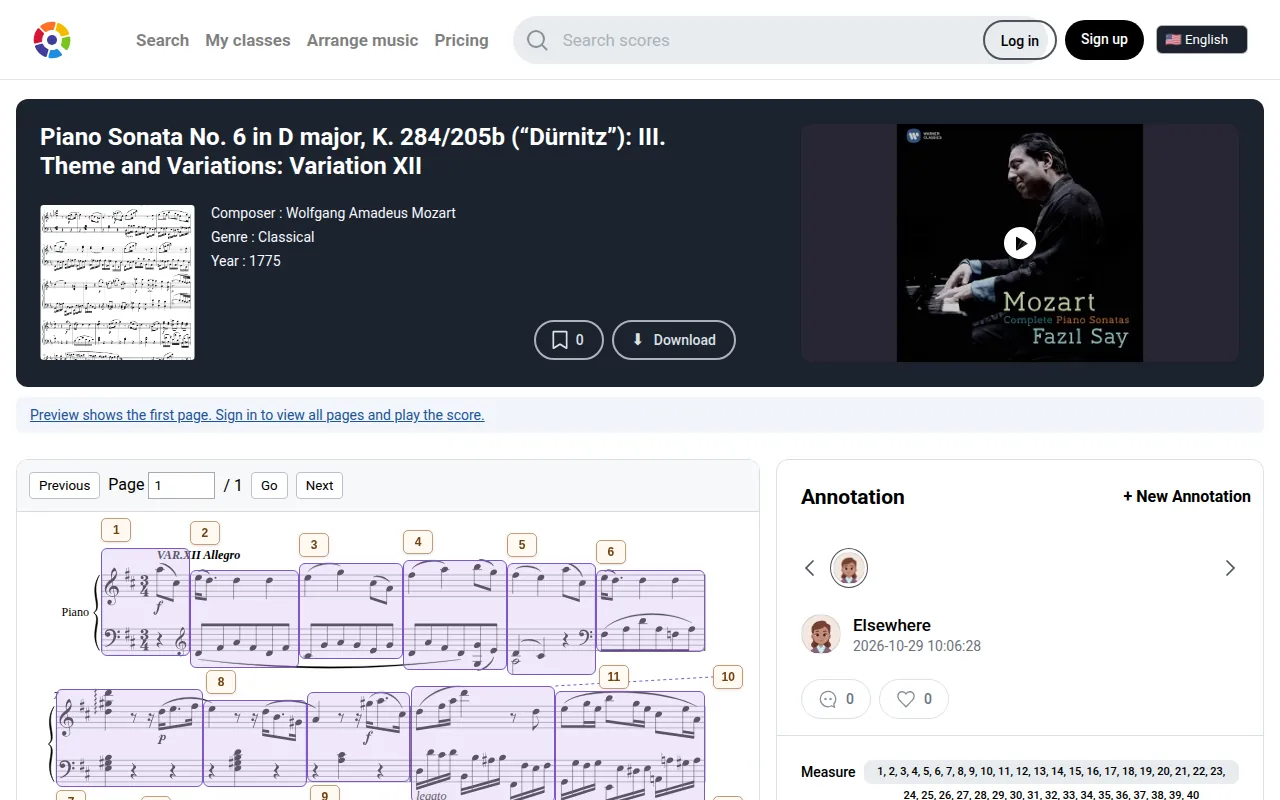
Click a score to open its page. At the top you see the composer, genre, year and a performance video. Below, the score is on the left and notes written by other people (annotations) are on the right.
The numbered boxes on the score are bar numbers. When you move through the annotations on the right, the bars they talk about are highlighted. After logging in you can see the whole score, listen to it and download it.
3Use the score tools
The score tools let you move a piece to another key, keep only the parts you need, or save chosen bars as a picture, without changing the original score. You need to be logged in.
1Open the score tools
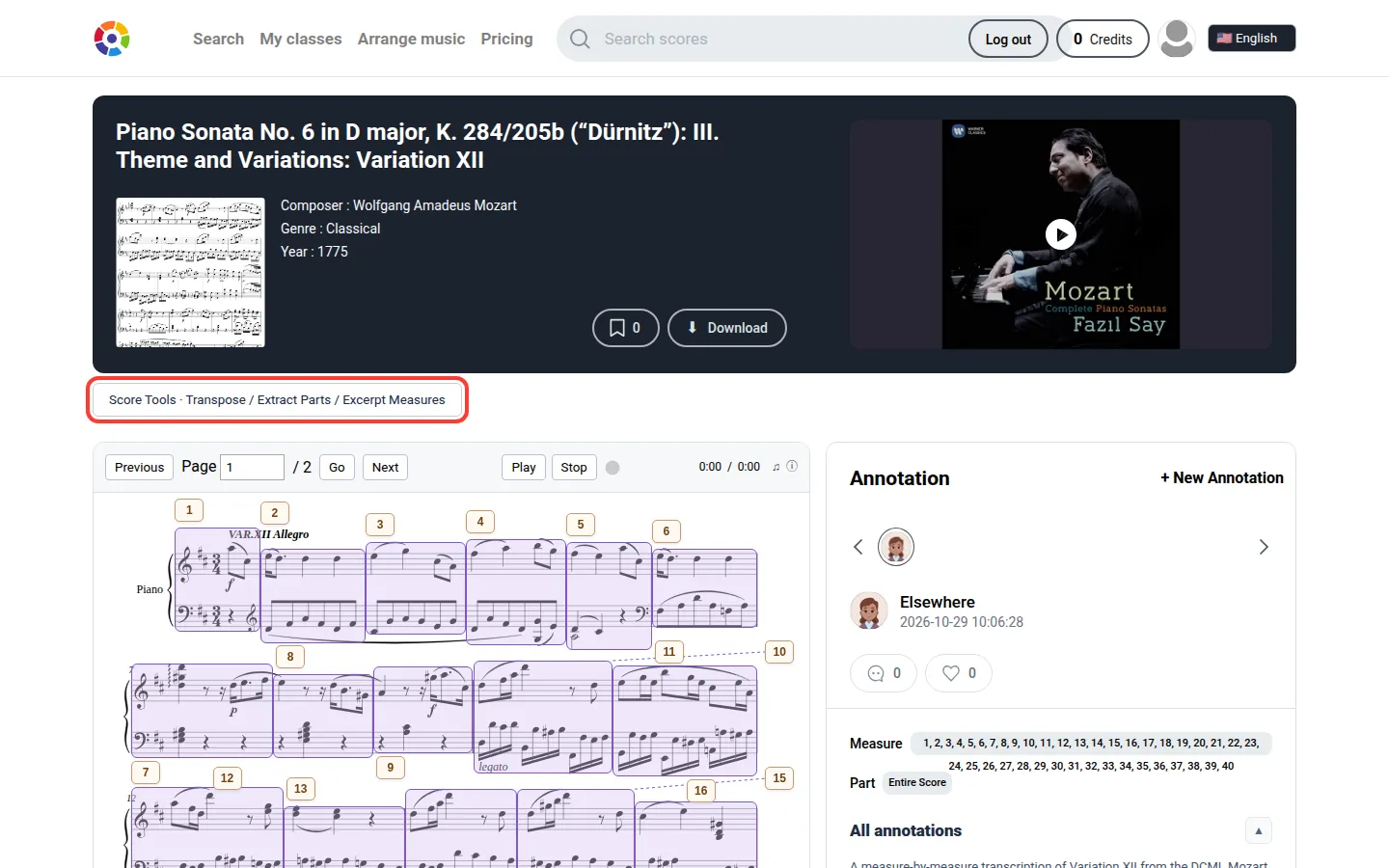
On a score's page, click the “Score Tools · Transpose / Extract Parts / Excerpt Measures” button just above the score. A window opens with three tabs at the top: “Transpose”, “Extract Parts” and “Export Excerpt”.
2Transpose: make the music higher or lower
Transposing moves the whole piece up or down by the same distance. Use it to make a song easier to sing or to play it on another instrument.
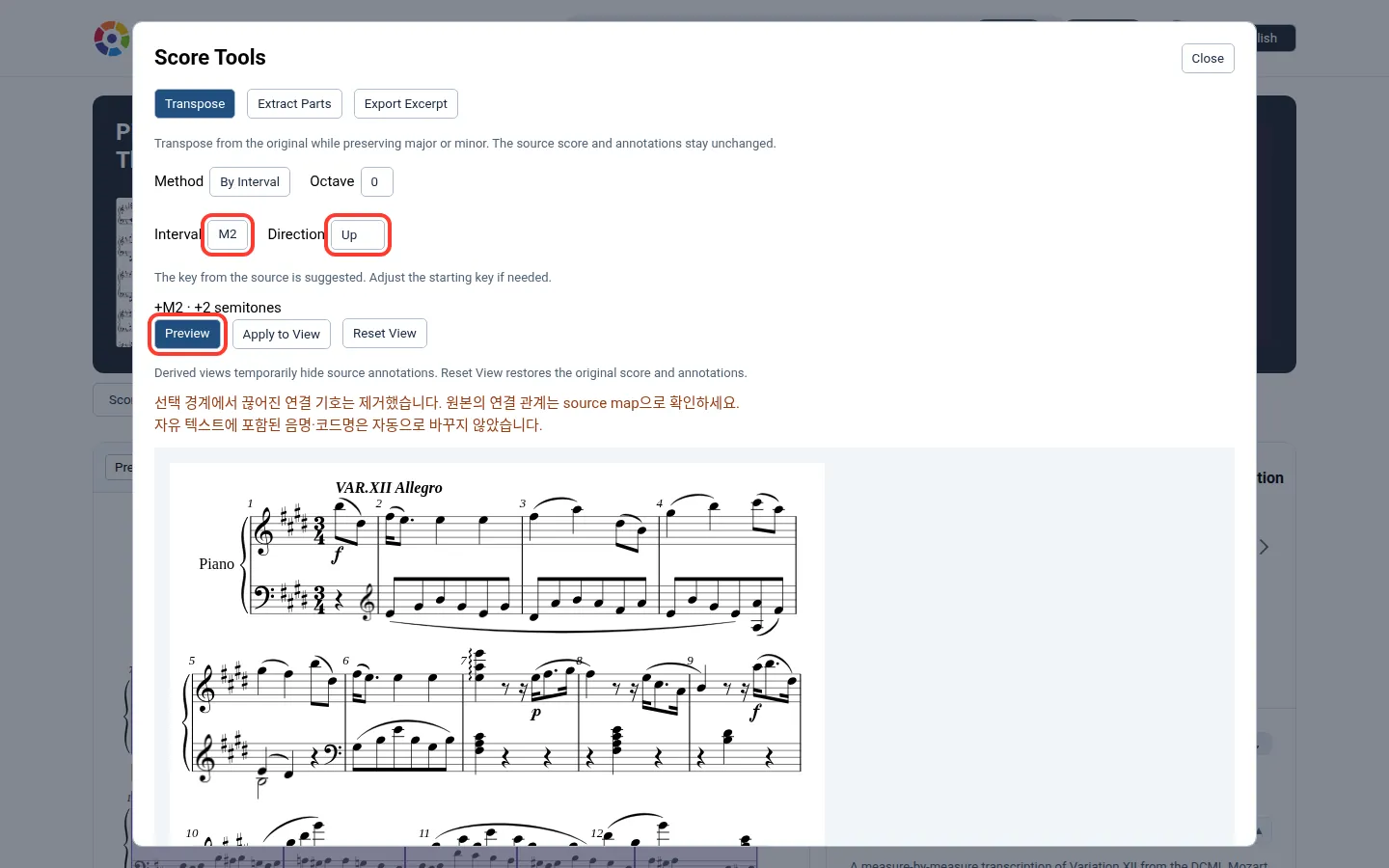
Choose a distance under “Interval” and “Up” or “Down” under “Direction”. For example, M2 moves every note by two half steps. Click “Preview” to see the new score below. “Apply to View” lets you read and play that version on the page, and “Reset View” brings back the original. The original score and its annotations do not change.
3Extract Parts: keep only the instruments you need
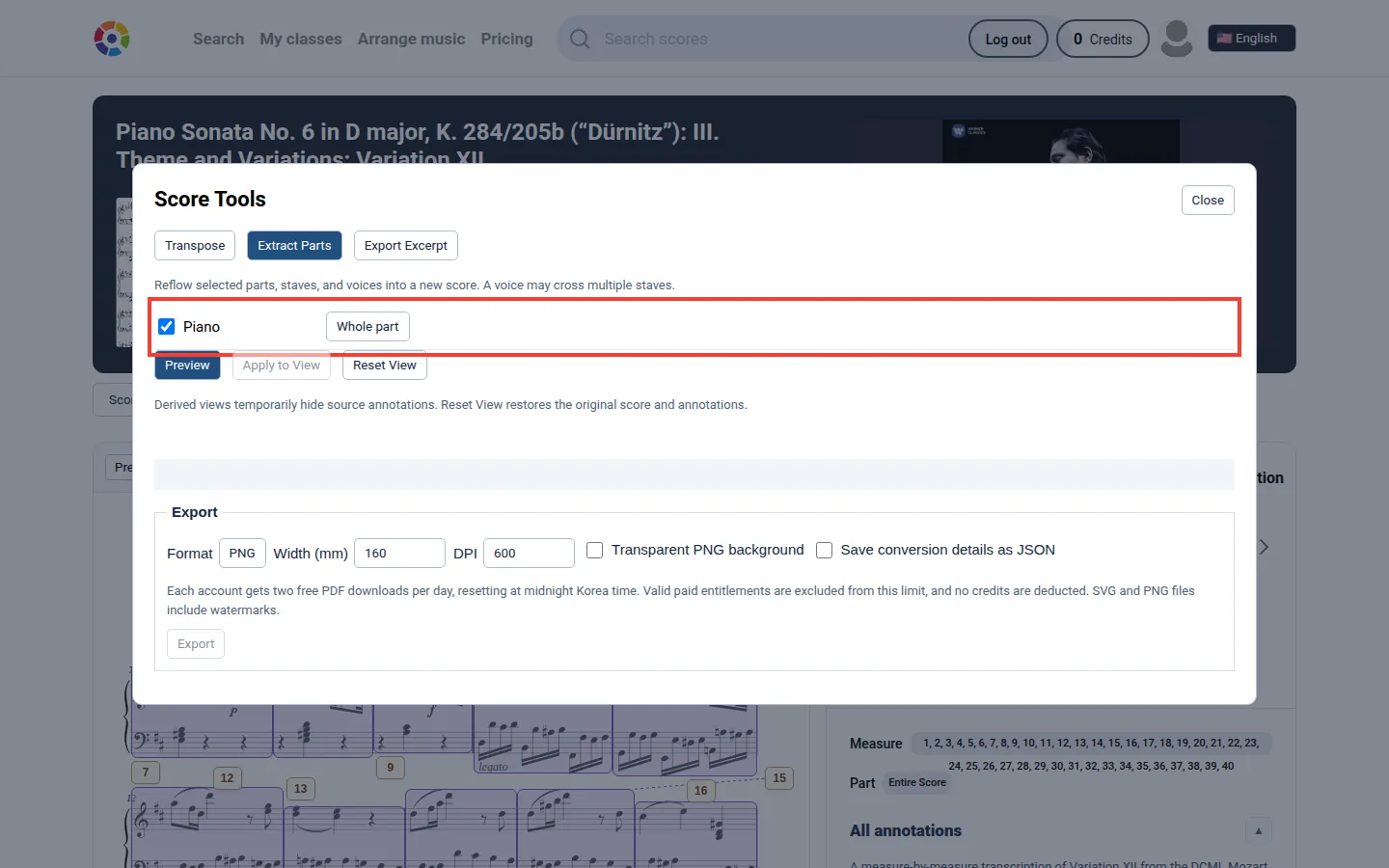
Use this when a score has several instruments and you only want yours. In the “Extract Parts” tab, tick the parts to keep. To be more precise, change “Whole part” in the box next to it to “Staves” or “Voices”. Then click “Preview” to see only what you chose, laid out as a new score.
4Export Excerpt: save just some bars
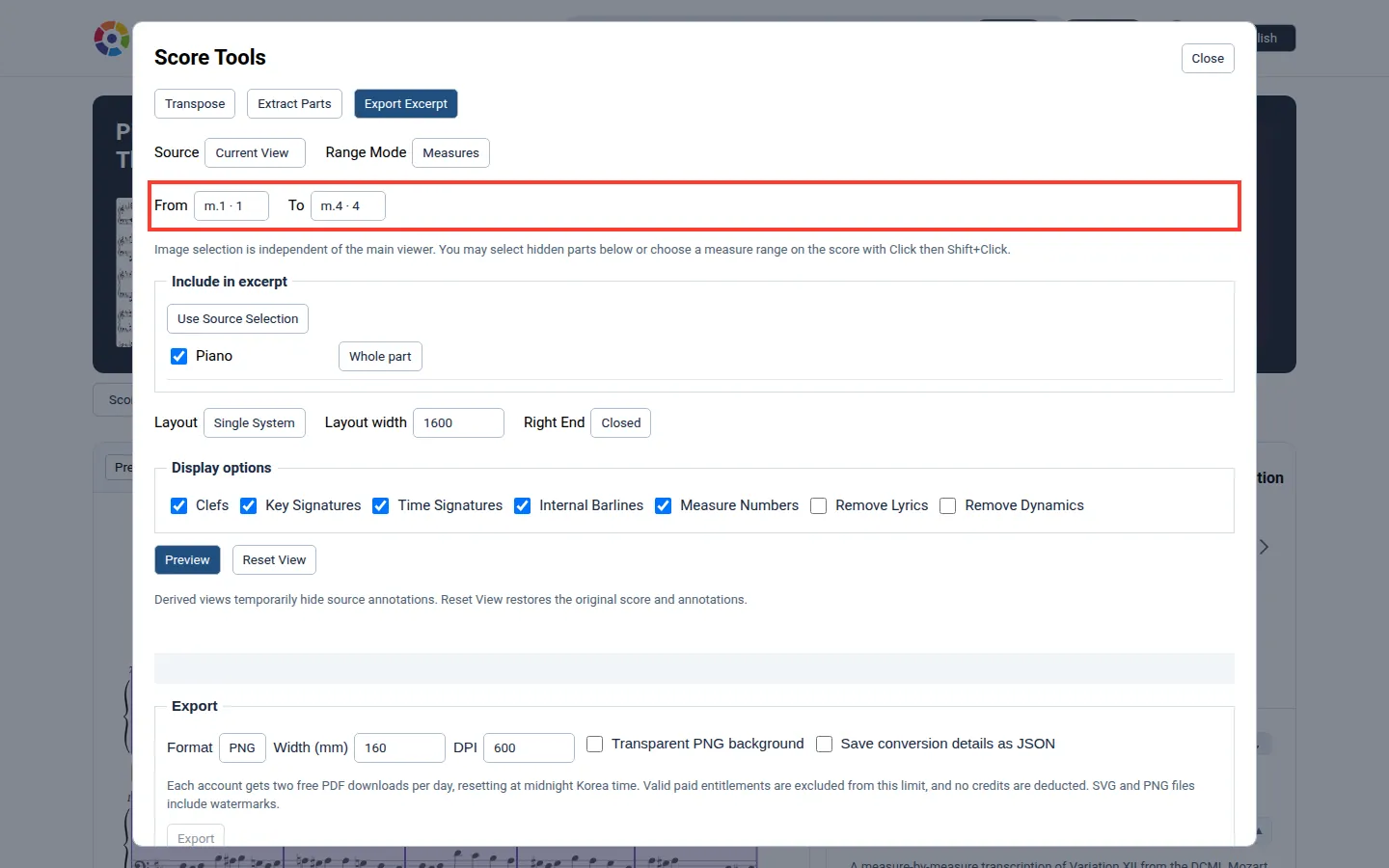
Use this when you need part of a score for homework or a lesson. In the “Export Excerpt” tab, choose the “From” and “To” bars and check them with “Preview”. You can also click the first bar on the score, then hold Shift and click the last bar.
Under “Export”, choose a file type (PNG, JPG, SVG or PDF) and size, then click “Export” to save the file. Each account can download two PDFs free per day, and PNG and SVG files include a watermark.
4Write annotations
An annotation is a note attached to particular bars or notes of a score. You can leave harmony analysis, playing tips or links to videos on the score and share them with others. You need to be logged in.
1Start a new annotation
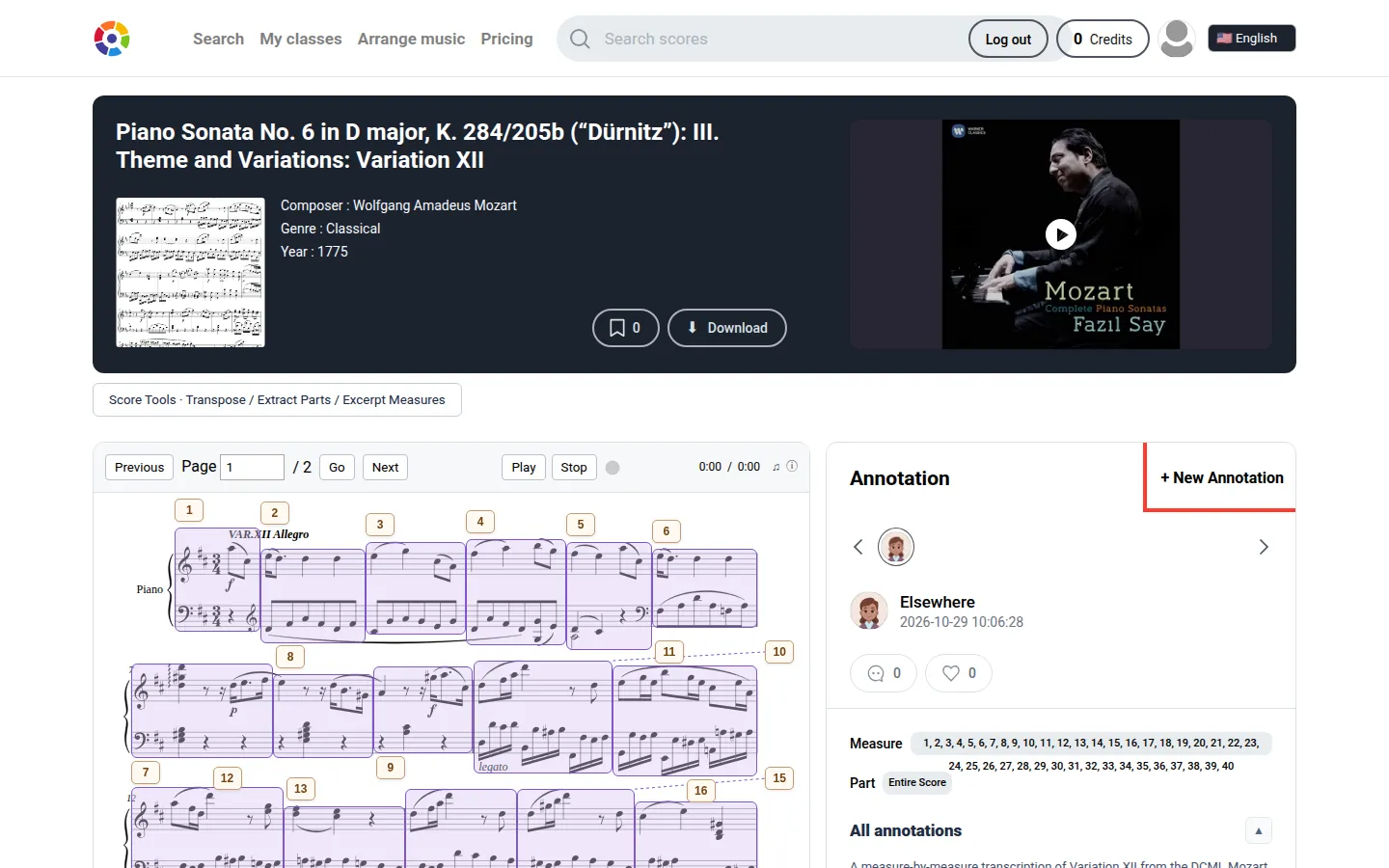
On the page of the score you want to annotate, click “+ New Annotation” at the top right. The annotation editor opens.
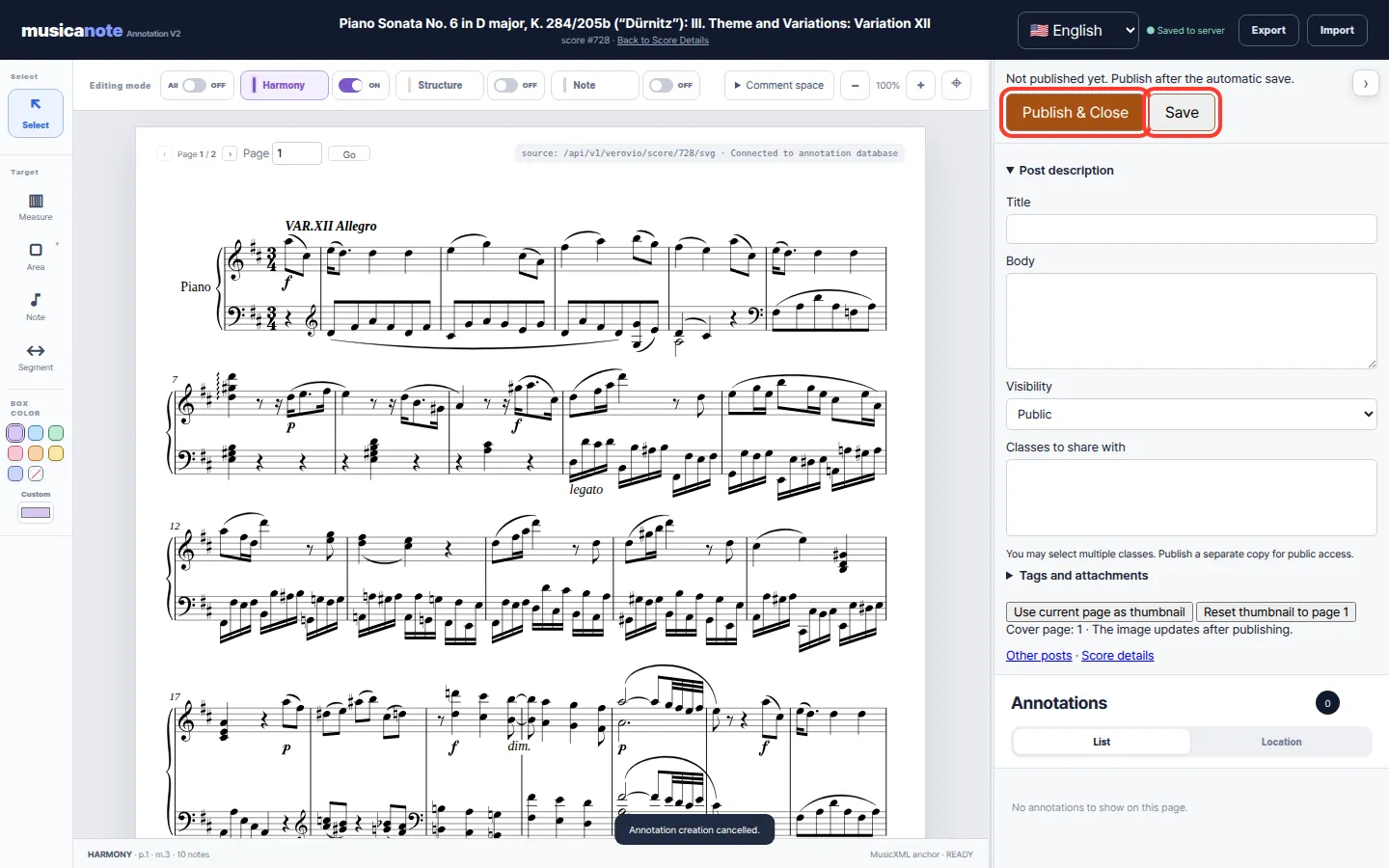
2The annotation editor
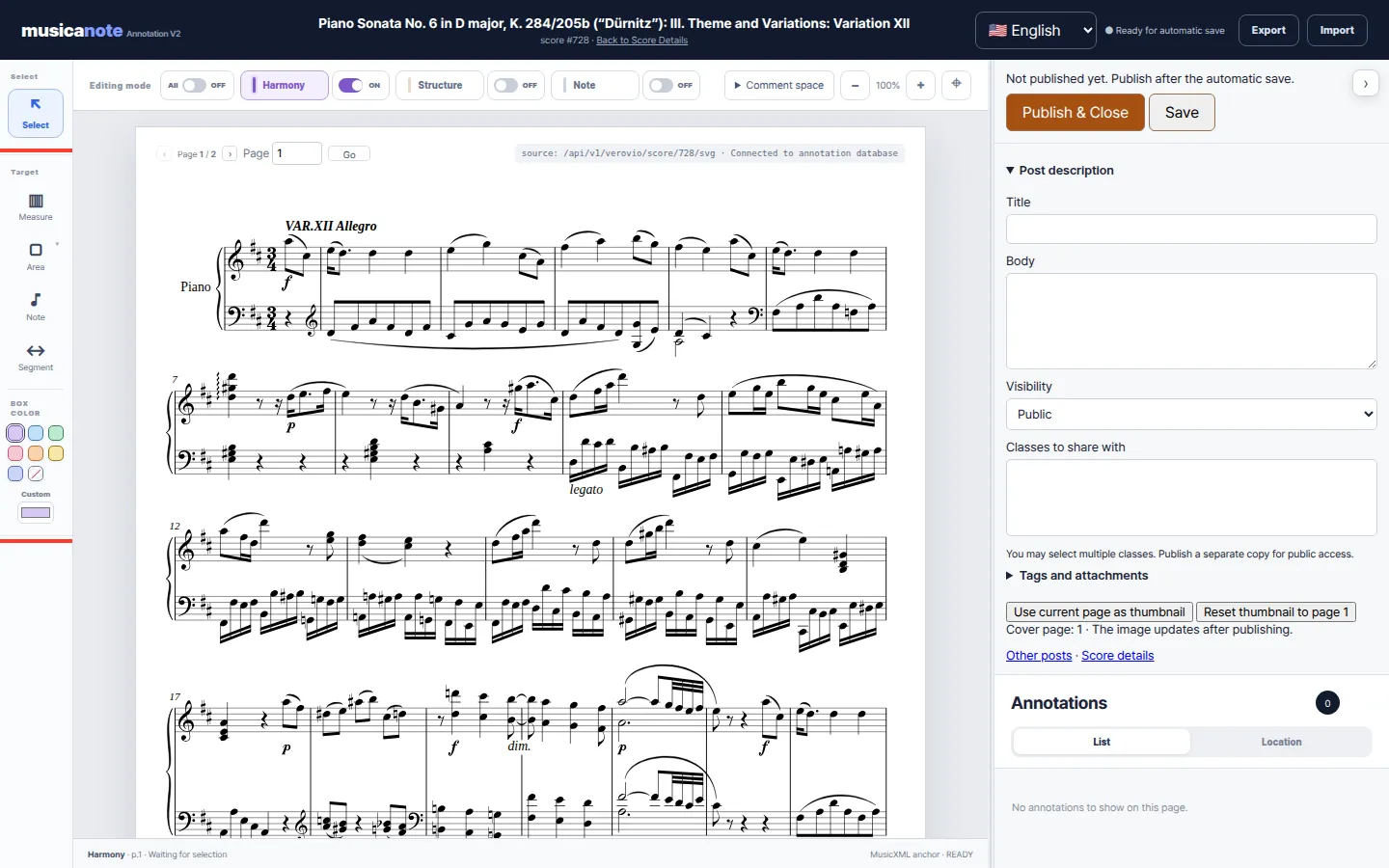
The score is in the middle. On the left are the tools for choosing where to attach a note, and on the right are the post details and the list of annotations.
The “Target” tools on the left come in four kinds: “Measure” picks a whole bar, “Area” draws a box anywhere on the score, “Note” picks a single note, and “Segment” picks a passage from a start point to an end point.
3Choose a place and write
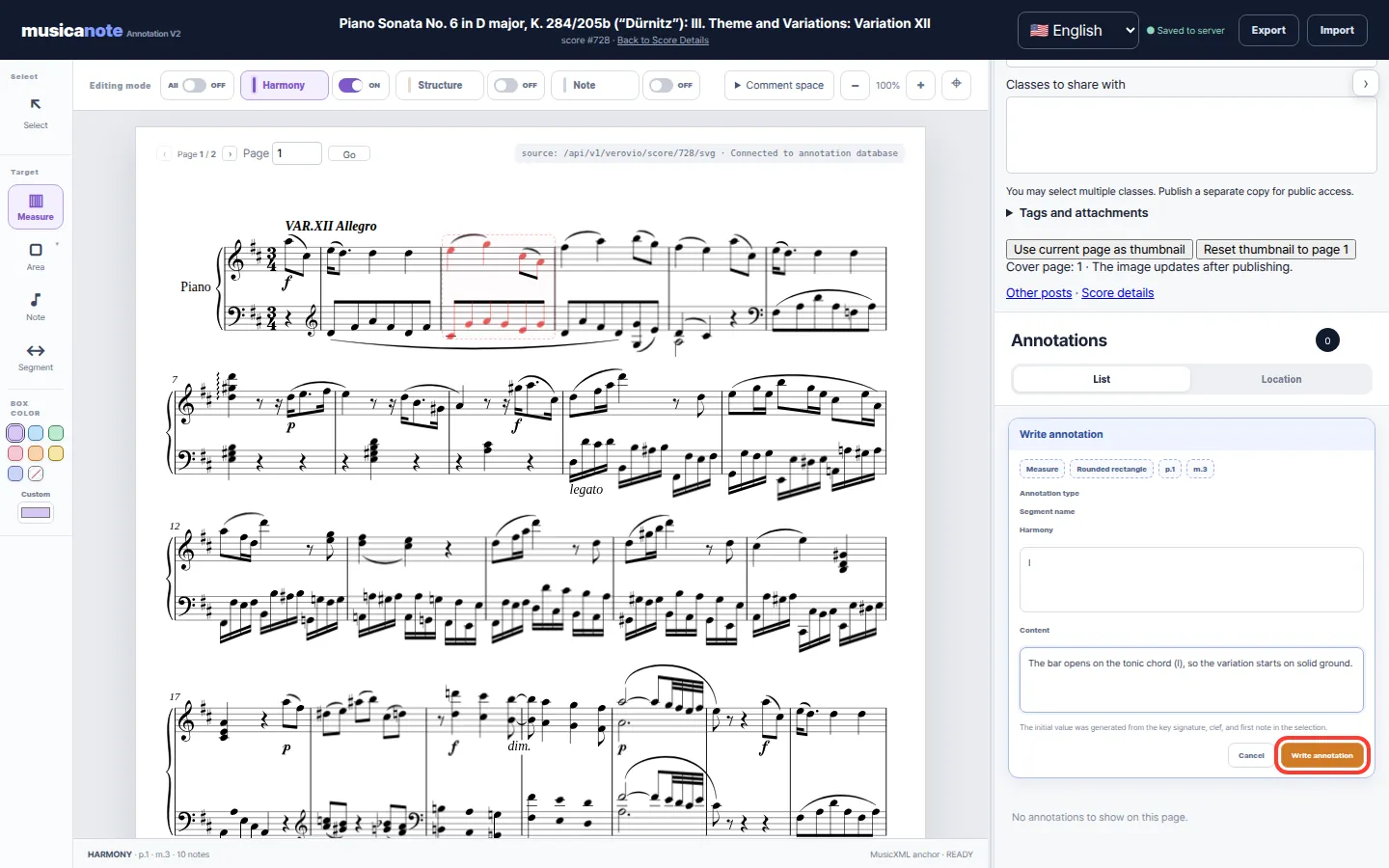
For example, click the “Measure” tool and then bar 3 on the score. The bar is highlighted and a “Write annotation” card opens at the bottom right. The “Harmony” box is filled in from the key signature and first note; change it if needed, then write your explanation under “Content”.
When you are done, click “Write annotation”, or “Cancel” to stop. Repeat this to add notes in as many places as you like.
4Save and publish
Under “Post description” at the top right, enter a title and body, and use “Visibility” to choose whether everyone or only class members can see it.
Your work is saved to the server automatically, and you can also click “Save”. Saving alone does not show it to anyone, though. When you are finished, click “Publish & Close” so the annotation appears in the list on the score's page.
5Find music by a melody
Use this when you remember how a tune goes but not its name. Enter the tune and Musicanote finds music that sounds similar.
1Enter the melody
Click “Search” in the top menu or “Melody Search” on the home page to open this page.
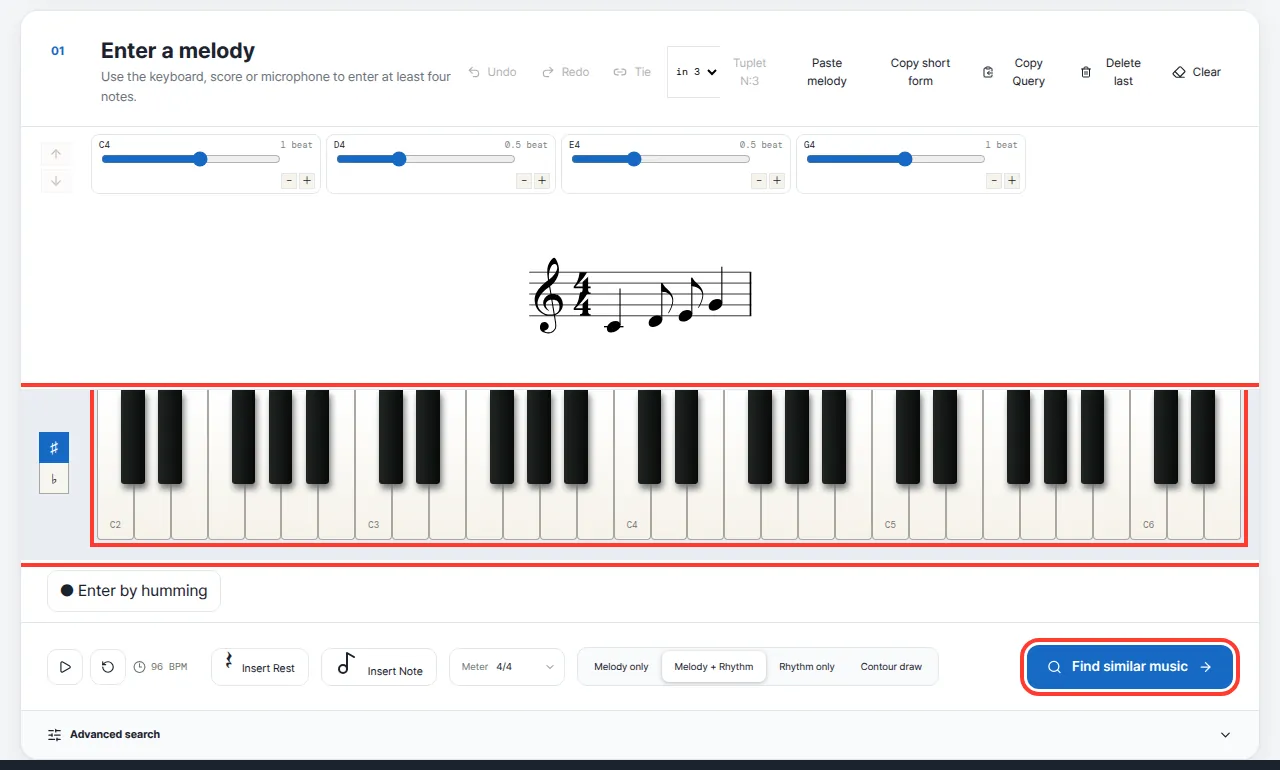
Click the piano keys one by one to add notes. You need at least four notes to search. Use the slider and the − / + buttons in each note box to change how long a note lasts. “Delete last” removes the last note and “Clear” removes all notes.
Instead of the keys, you can click “Enter by humming” and hum into your microphone. Click ▷ to hear the melody you entered.
2Find similar music
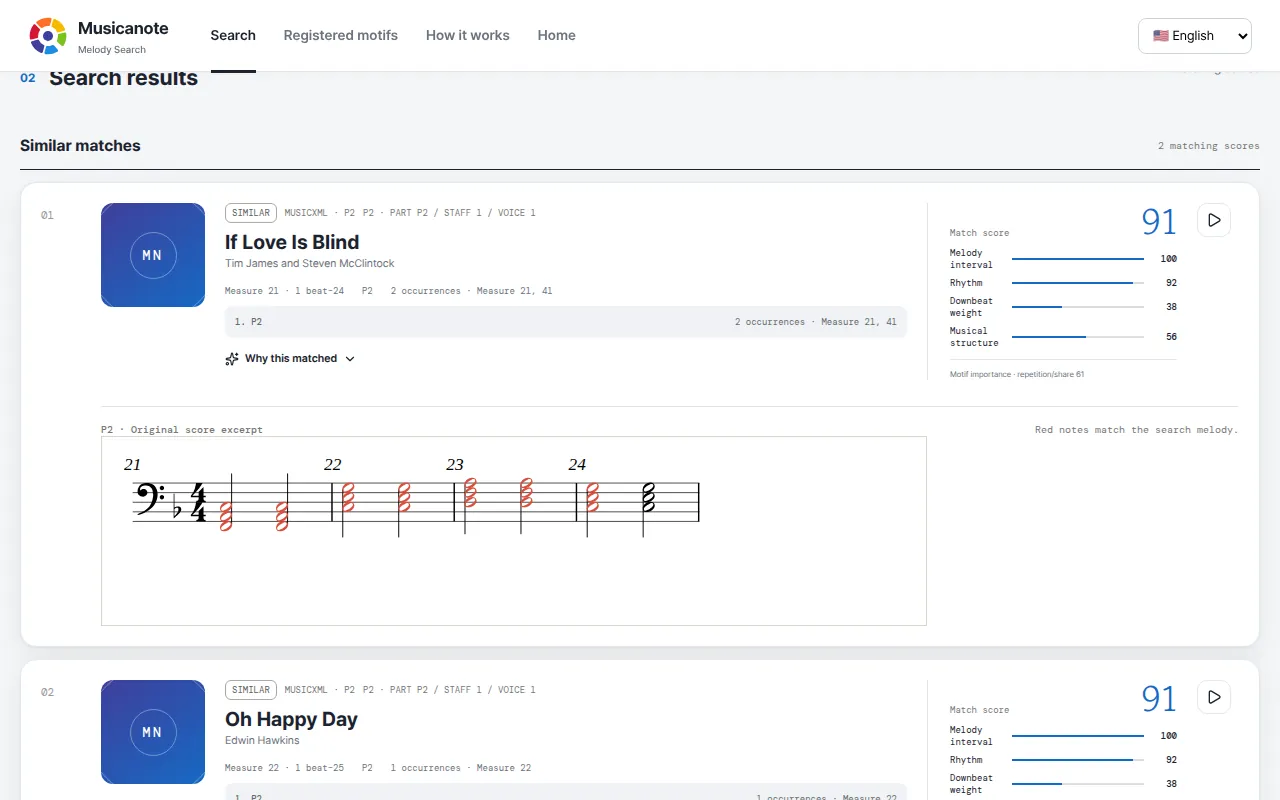
When your melody is ready, click the blue “Find similar music” button at the bottom right. After a moment, scores containing a similar melody appear below.
A higher “match score” on the right means the music is closer to your melody. In the score excerpt, the notes in red are the ones that match. Click “Why this matched” to see the reasons.
6Arrange music (Composer)
An arrangement keeps the melody of a piece but gives it a new accompaniment or new instruments. In Composer you choose the difficulty, mood and instruments in a chat, and the computer writes the arranged score for you. Click “Arrange music” in the top menu to open it. You need to be logged in.
1What is on the screen
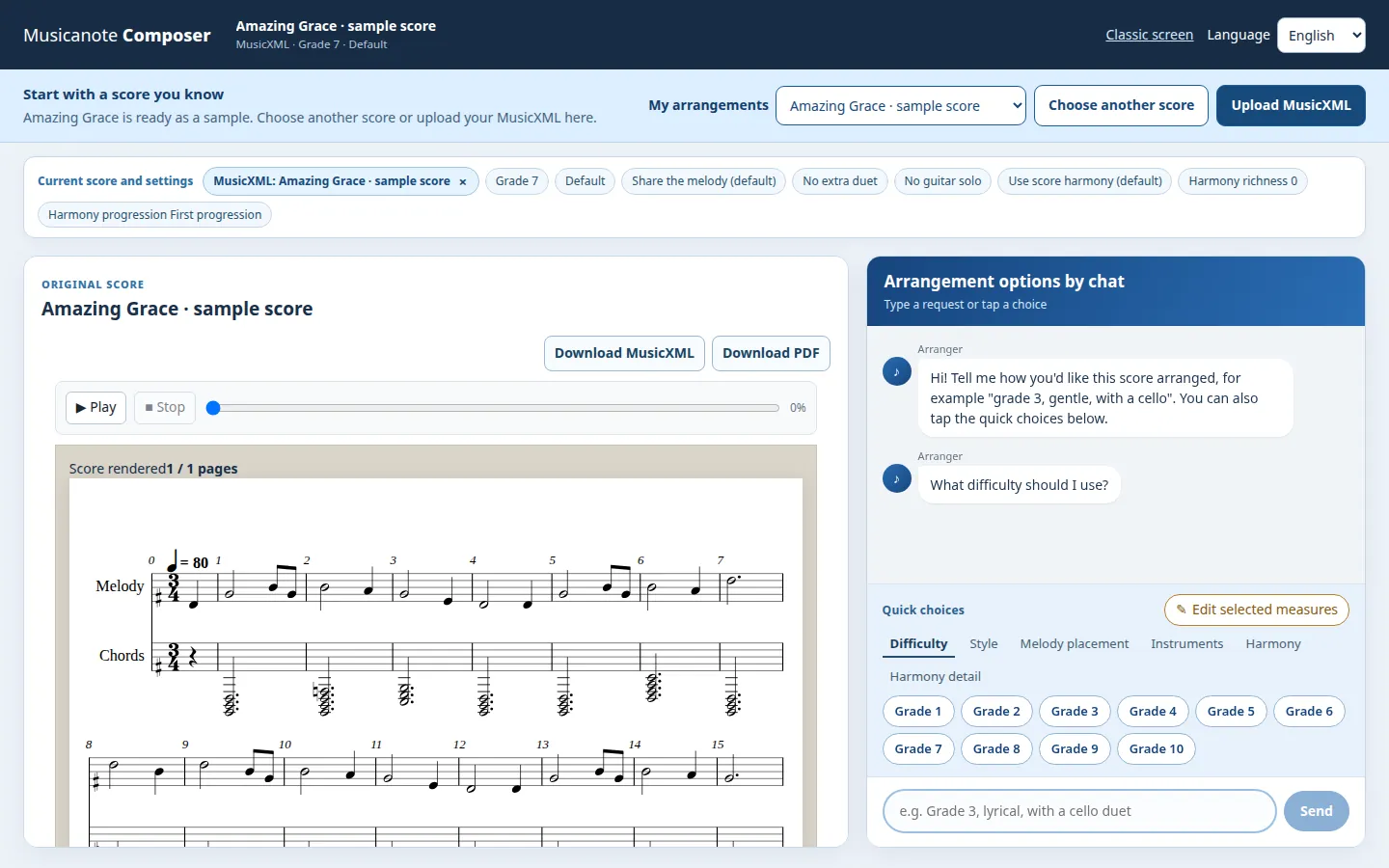
The score is on the left and the chat with the arranging assistant is on the right. A sample score, “Amazing Grace”, is already open so you can try arranging right away.
Click ▷ above the score to hear the original piece.
2Choose a score to arrange
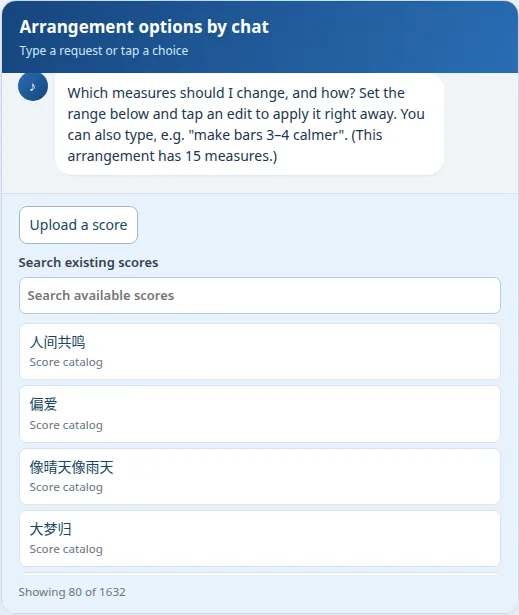
To arrange another piece, click “Choose another score” at the top. A list of scores appears in the chat, and you can type a title in its search box.
To use a score file from your computer, click “Upload MusicXML” or “Upload a score”. MusicXML is a file type that stores sheet music so computers can read it. Its name ends in .xml, .musicxml or .mxl. Music notation programs such as MuseScore, Finale and Sibelius can export it.
3Pick options with quick choices
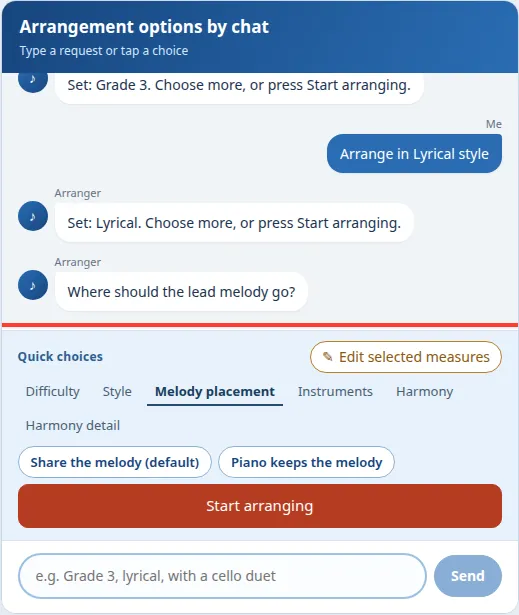
Click a button under “Quick choices” at the bottom of the chat. Your choice appears as a chat message, and the assistant replies with what it set.
Go through the “Difficulty”, “Style”, “Melody placement”, “Instruments” and “Harmony” tabs and pick what you like. Difficulty is a grade from 1 (easiest) to 10 (hardest). For style, “Lyrical” is recommended. In the instruments tab you can add an instrument such as a cello or flute to play with the piano.
4Ask in your own words
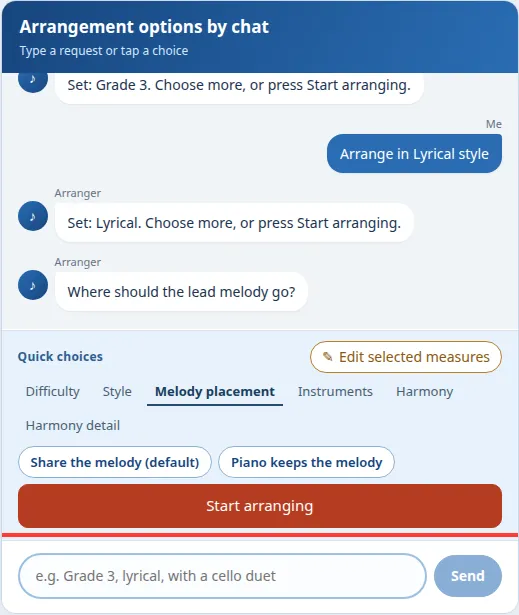
Instead of buttons, you can type what you want in the box at the bottom, for example “Grade 3, lyrical, with a cello duet”, and click “Send”. The assistant reads your sentence and picks matching options.
5Check your settings
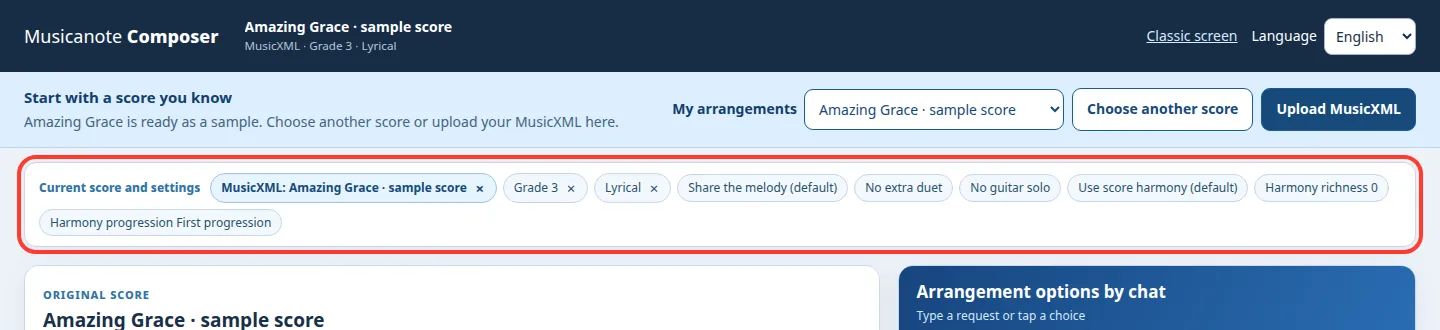
The “Current score and settings” bar above the score and chat shows the score and options you have chosen. Click × next to an option to set it back to its default.
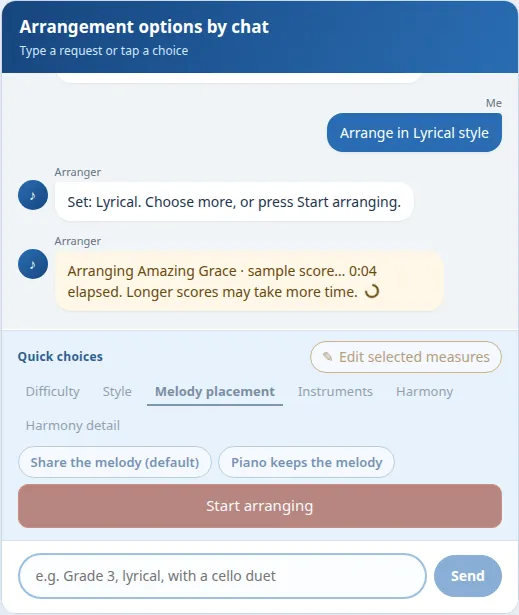
6Start and wait
When you are ready, click the red “Start arranging” button. The chat shows the time passed, for example “0:12 elapsed”. It usually takes a few seconds to a minute; long pieces take longer. If many people are arranging at once, you first see a message that you are waiting in line.
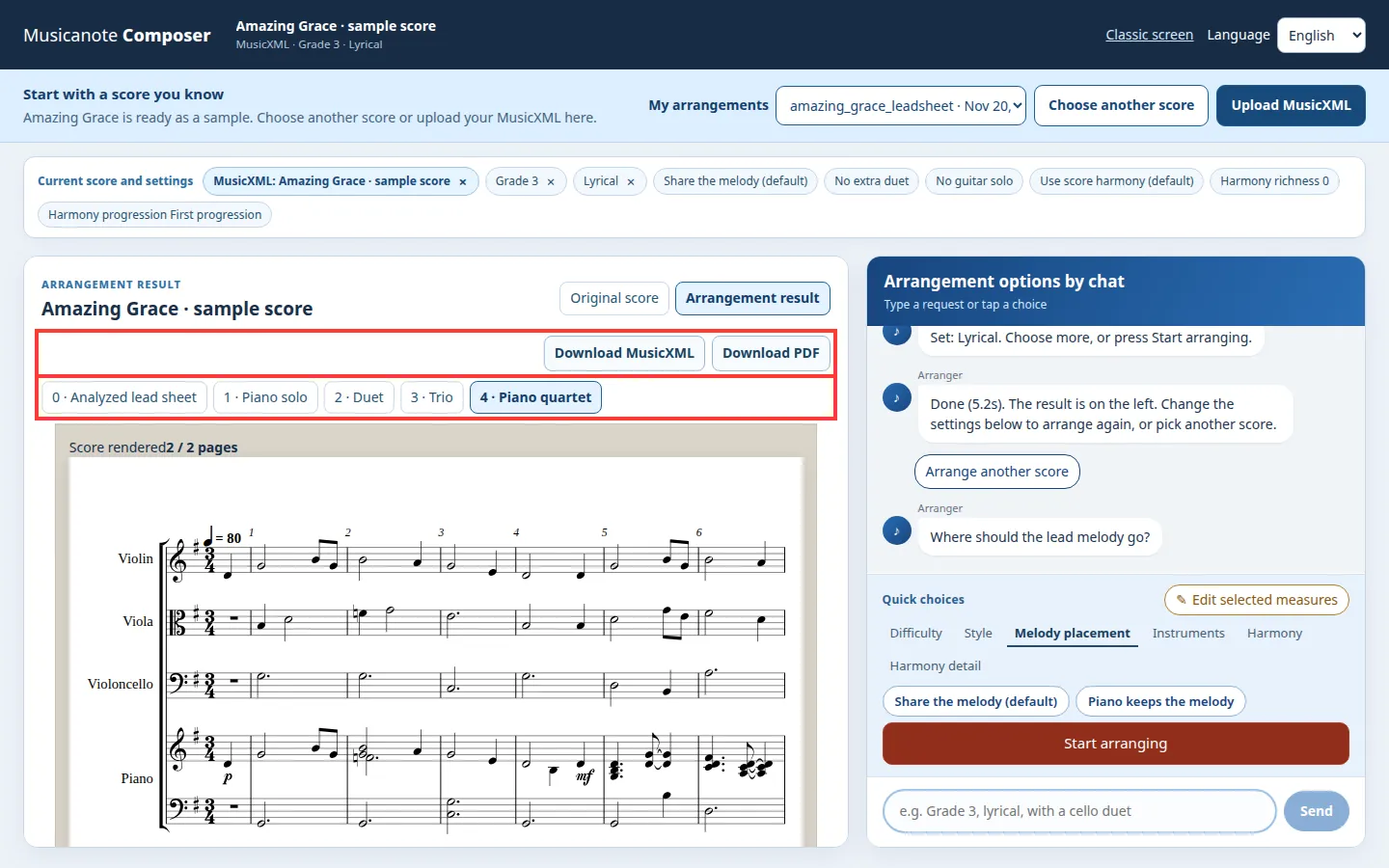
7See and download the result
When it is done, the arranged score appears on the left. Click the tabs above it to switch between versions such as “1 · Piano solo”, “2 · Duet”, “3 · Trio” and “4 · Piano quartet”. Use “Original score” and “Arrangement result” to compare with the original.
If you like it, click “Download MusicXML” or “Download PDF”. A PDF is ready to print, and a MusicXML file can be edited in a notation program.
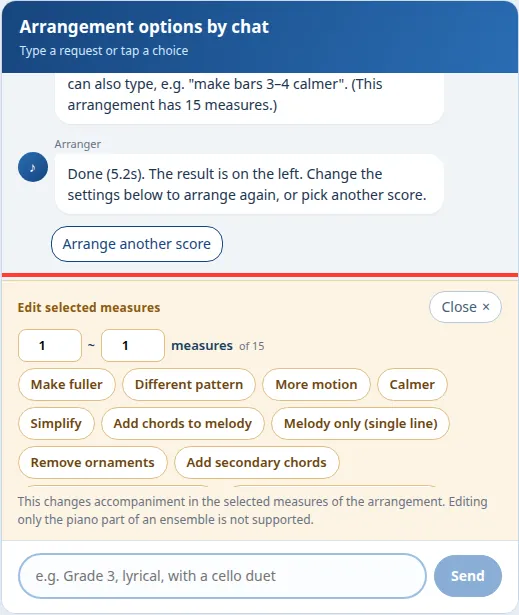
8Re-arrange only some bars
To change just a few bars of the result, click “✎ Edit selected measures” next to “Quick choices”. A bar (measure) is one section of the score between two vertical lines.
Enter the bars to change, for example 1 to 3, and click a direction such as “Simplify”, “Calmer” or “Make fuller”. Only those bars are arranged again; the others stay the same. You can also type “make bars 3–4 calmer”; the assistant then asks you to confirm first. Click “Close ×” when you are done.
9Open my arrangements again
Click the “My arrangements” box at the top to see every arrangement you have made, with its date. Choose one to open its score together with the settings you used. You can change a setting and arrange it again.

7My classes
A space where a teacher and students look at scores and notes together. It needs a login, so this guide has no pictures of it.
1Teachers: create a class and invite students
Click “My classes” in the top menu, enter a name for the new class and click “Create class”. Then click “Create invitation” to make an invite code or link and share it with your students. An invite works for 7 days.
When a student asks to join, click “Approve” or “Reject” in the member list.
2Students: join with an invite code
On the “My classes” page, enter the invite code from your teacher and click “Request to join”. Once the teacher approves, the class appears in your class list.
3Study together
In a class you can view shared scores and write class annotations (notes on the score) and comments. A teacher can use “Share scores” to let members view a private score they uploaded. Members cannot download the original file.
Useful words
- Score (sheet music)
- Music written down with notes and symbols, on paper or in a file.
- Bar (measure)
- One section of a score between two vertical lines. The numbers above the score are bar numbers.
- Melody
- The line of notes you can sing along to.
- Harmony
- The sound of several notes played together. It changes the mood of the accompaniment a lot.
- Arrangement
- A new version of a piece that keeps its melody but changes the accompaniment, instruments or difficulty.
- Duet, trio, quartet
- Two, three or four players, each on their own instrument, playing together.
- Annotation
- A comment or note attached to a part of a score.
- MusicXML
- A file type for sheet music that most notation programs can open.
Frequently asked questions
I can't see the whole score.
Without logging in you can preview only the first page. Log in to see and hear the whole score.
Melody search finds nothing.
Check that you entered at least four notes. If you are not sure about note lengths, choose “Melody only” at the bottom to search by pitch alone.
The assistant doesn't understand me.
Try short, clear requests such as “grade 3”, “lyrical” or “cello duet”. If that still does not work, use the quick choice buttons.
Where are my arrangements saved?
Every arrangement is saved automatically in “My arrangements”. To keep a file, download it as MusicXML or PDF.
How many PDFs can I download?
In the score tools' Export Excerpt, each account can download two PDFs free per day; the count resets at midnight Korea time. PNG and SVG files are saved with a watermark.